ClientPay
Designing a local-first invoicing and payment tracker, born from freelance frustration.
Lifetime Downloads
Total Revenue
Peak Active Devices
Source: App Store Connect · Lifetime data
Project overview
ClientPay is a mobile app for iPhone and iPad that helps freelancers create invoices, track payments and follow up with clients without heavy accounting software. As the founder, designer and engineer, I built the first version in a six-week sprint (August-September 2025). Since launch I have shipped incremental updates based on real user feedback.
I wrote this to show how I reason through product decisions, not only what ended up in the app.
Personal and problem context
As a freelance developer and designer juggling multiple clients, I constantly struggled to produce professional invoices and remember who owed me what. Spreadsheets were time-consuming and easy to misplace. Full accounting suites felt like overkill for a handful of monthly invoices, so overdue payments often went ignored.
This frustration became the seed of ClientPay. I wanted an app that:
- Allowed me to create invoices quickly and look professional, ideally in under a minute when things go smoothly.
- Gave me instant clarity on payment status, highlighting which invoices were paid, pending or overdue.
- Automated follow-ups without sounding robotic, using AI to draft friendly chase messages.
- Supported multiple business identities and 45+ currencies so I could invoice different clients in different currencies.
- Worked offline and stored data locally so I remained in control, with optional server integration for chase messages.
The friction I experienced as a freelancer, combined with the lack of a dedicated tool for simple yet flexible invoicing, motivated me to design and build ClientPay.
Users
Primary
Busy freelancers and small teams who bill clients on a project or hourly basis. They juggle multiple clients, may operate under different business names and need to invoice in various currencies. They are comfortable with mobile apps but do not want to learn full accounting software.
Secondary
Small agencies or contract teams managing a handful of clients. They need the same features as freelancers but want recurring invoices and easy multi-business switching too.
Not targeted
- Large enterprises or firms requiring complex financial integrations and detailed reporting.
- Users needing payroll, tax calculations or full double-entry accounting.
- Anyone without access to a smartphone.
Goals & success metrics
I set concrete goals so the work stayed tied to measurable outcomes.
Fast invoicing
Reduce friction and encourage adoption
Payment clarity
Empower users to prioritise follow-ups
Effective reminders
Improve cash flow and reduce awkwardness
Pro subscription uptake
Validate the value of premium features
Constraints & assumptions
- Solo founder: With no team, I balanced scope with feasibility and focused on features delivering the highest impact.
- Local-first design: To avoid backend complexity and respect privacy, all data lives in AsyncStorage. Users can optionally wire their own API to generate chase messages.
- Free tier limitations: The free version allows creating only one invoice; additional invoices require a Pro subscription. This constraint kept the free tier simple and drove conversion without compromising the value proposition.
- Deferred payment integration: Direct payment processing (e.g., credit card links) and accounting integrations were out of scope for v1. Instead, invoices can be exported as PDFs and sent manually.
- Assumed AI acceptability: I assumed users would appreciate AI-generated follow-ups if they could edit messages. To mitigate risk, the app falls back to a static template when the AI fails.
Competitive analysis
Gap identified: no tool offered quick invoice creation with clear status tracking, human follow-ups and multi-business flexibility for freelancers.
Design process
Three-pronged research to understand how freelancers actually get paid.
- Competitive teardown of invoicing apps
- Informal interviews with 5 freelancers across disciplines
- Desk research on billing workflow best practices
Framed the problem and wrote experience principles as a north star.
- Problem: fast, professional, flexible invoicing across clients
- Personas: solo freelancers + multi-business operators
- Principles: fast first · payment visibility · automated yet human
Sketched and prototyped concepts before committing to a layout.
- Card vs list layouts for clients and invoices
- Multi-step form vs single-page invoice creation
- Tested OpenAI-generated polite chase messages early
Low-fidelity wireframes
I began with grayscale, low-fidelity wireframes to map out the core screens (Dashboard, Clients, Invoices, Create Invoice, Reminders and Onboarding). These stripped-back layouts let me validate information hierarchy and navigation flow before committing to visual design decisions.
Mid-fidelity wireframes
Building on the lo-fi layouts, I introduced ClientPay's blue brand palette, real content and colour-coded status indicators (green for paid, amber for pending, red for overdue). These mid-fi wireframes served as the foundation for the final UI and were used in usability testing with freelancers.
Test
I tested interactive prototypes with the same group of freelancers, who completed tasks like creating an invoice and generating a reminder. Feedback led to key changes: simplifying the invoice form, pre-filling client details, adding a currency picker and creating a dedicated Reminders tab. Post-launch analytics confirmed users could create invoices in 45 seconds on average.
Final screens
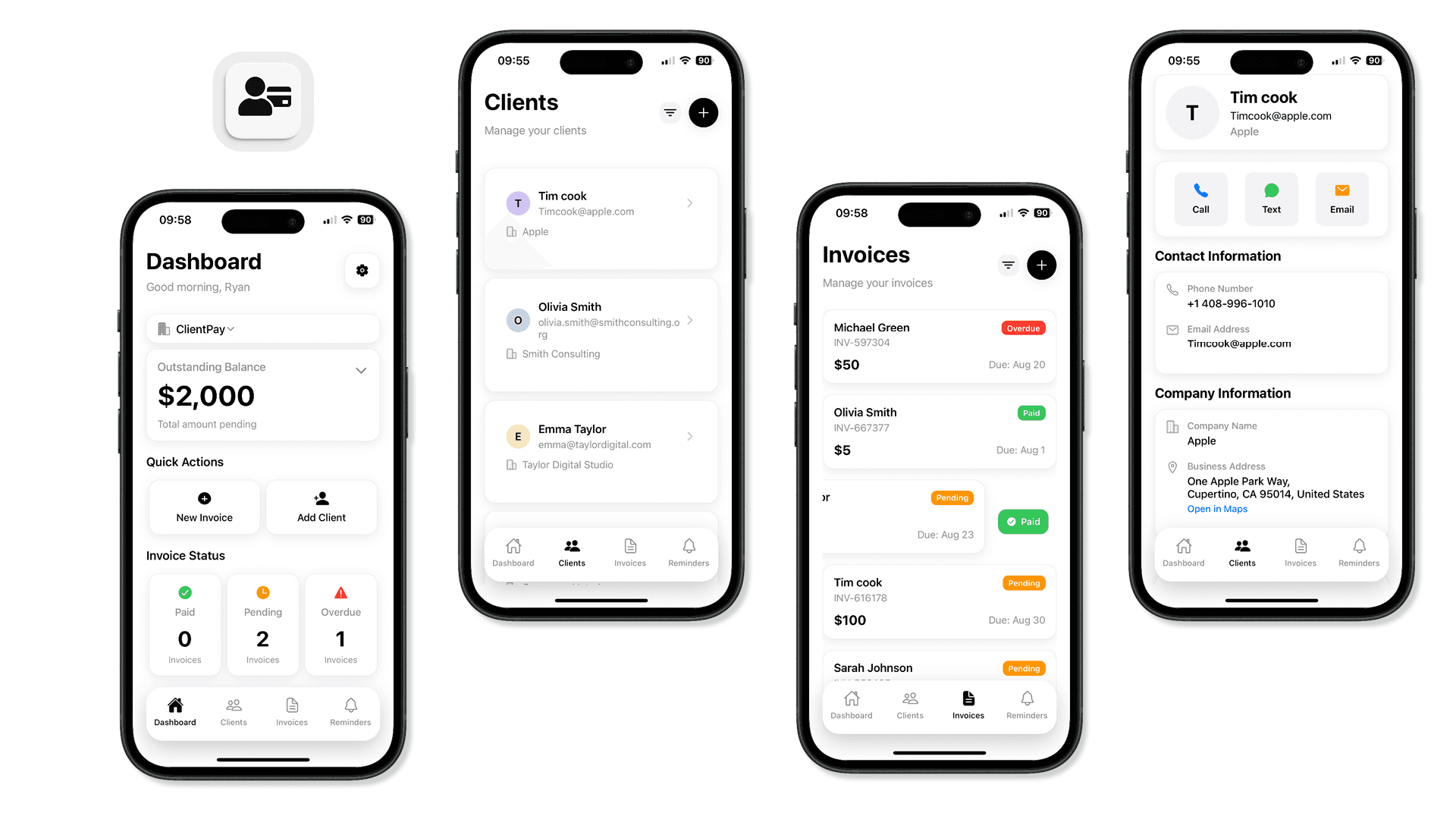
A guided tour of the shipped app, with callouts on the design decisions behind each screen.
Home — Dashboard
A calm snapshot of earnings and outstanding work.
- 1Personal greetingSets a friendly tone and orients the user to their own business.
- 2Paid vs pendingPayment visibility principle — the two numbers freelancers care about most.
- 3Recent activityQuick re-entry point into any in-flight invoice without searching.
- 4Primary CTACreate Invoice is always one tap away — the fast-first principle.
Clients
A lightweight CRM built for people who hate CRMs.
- 1Search + addFastest possible path to either finding or adding a client.
- 2Avatar + nameHuman-first list design — you recognise the person before the data.
- 3Status at a glanceOutstanding balance surfaced inline so you never dig to find it.
Client detail
Everything about a client in a single scannable card.
- 1Contact headerName, email, phone grouped so the user can act in one glance.
- 2Lifetime statsTotal billed + paid builds trust and context before sending a new invoice.
- 3Invoice historyChronological list keeps past work close without leaving the profile.
Invoices
Status-first list that answers "who owes me?" in seconds.
- 1Filter tabsPaid / Pending / Overdue — the only three states that matter.
- 2Coloured status pillVisual status beats reading — green, amber, red map to user intuition.
- 3Amount prominentThe number you care about is the largest element in the row.
Invoice detail
All the context needed to send, track or chase an invoice.
- 1Invoice headerNumber, client and total — the three facts users confirm before any action.
- 2Line itemsClean breakdown with per-item totals so nothing feels hidden.
- 3Action buttonsSend, share and chase live at the bottom where the thumb naturally rests.
Reminders
AI-drafted chase messages that still feel human.
- 1Single Reminders tabOne place for every overdue invoice — addressed a direct user testing complaint.
- 2Editable AI draftOpenAI generates the first pass, but the user always owns the final message.
- 3Send with confidencePreview + send keeps the automated yet human principle intact.
Information architecture
Navigation stays shallow with a floating bottom tab bar and four core tabs: Dashboard, Clients, Invoices and Reminders. Settings and Currency are accessible from any tab via modal overlays. First-time users complete a short onboarding flow before reaching the dashboard.
Each tab serves a distinct purpose.
| Tab | Purpose |
|---|---|
| Dashboard | Greets the user, displays invoice summaries (paid/pending/overdue) and allows switching between businesses |
| Clients | Lists clients and lets users create or edit client profiles; edits cascade to existing invoices |
| Invoices | Lists invoices with status indicators and provides a one-tap Create Invoice flow |
| Reminders | Aggregates pending/overdue invoices; generates chase messages via server endpoint, OpenAI or a static fallback |
Core actions sit close to the surface, without burying people in nested navigation.
User journey flow diagram
This diagram maps the main paths from first launch and onboarding through invoice creation, status tracking, business switching and automated follow-ups. It also surfaced edge cases early, like the free-tier upgrade prompt and the three-level chase-message fallback.
User journey flow
Launch & Onboarding
User opens the app, completes onboarding by entering their preferred name, selecting a default currency and naming their first business. They see a paywall that explains the free tier (one invoice) and Pro tier (unlimited invoices and reminders).
Dashboard overview
The Dashboard greets the user, summarises their invoices by status and allows switching between businesses. Quick actions encourage users to create their first invoice.
Create & send invoice
Users tap Create Invoice, fill in the client, amount, due date and optional recurrence, then add line items to see a running total. A currency picker and business selector assign each invoice to the right entity. Once saved, the invoice exports as a PDF ready to share or email.
Track status
Back on the Dashboard or Invoices list, each invoice displays its status (Paid, Pending or Overdue) with coloured tags. Users can mark invoices as paid or edit details. Recurring invoices appear automatically each period.
Follow-ups & reminders
Overdue invoices surface in the Reminders tab. Users tap an invoice to generate a chase message via a configurable endpoint, OpenAI or a static fallback. Saving an invoice also schedules a local push notification for the due date, reducing the mental load of chasing clients.